
 Made in Korea
Advertising and signage
Produce advertising panels, signage and exhibition graphics. The large print area lets you print large graphics without splitting them into smaller sections.
PLASTICS / METAL / BOARDS
INDUSTRIAL UV LED FLATBED PRINTING
Large format. Precision in every detail.
A 3.2 × 2.01 m print bed. From large signage panels to short runs and décor — printed directly onto the substrate.
 See up close
 * Performance in masking mode, 6 passes. View all measurement modes and conditions ↓
01 / PRINT APPLICATIONS
The LXa8 handles large rigid substrates and lets you arrange several smaller items on the bed for a single print job.
 Enlarge
 3.2 × 2.01 m PRINT AREA
Print across a full panel or arrange several smaller items in one job. Six vacuum zones hold the media in place, while automatic positioning pins help you align it.
Produce advertising panels, signage and exhibition graphics. The large print area lets you print large graphics without splitting them into smaller sections.
PLASTICS / METAL / BOARDSAcrylic, glass and coloured substrates. White ink can create a base for colour, and varnish can highlight selected design elements.
ACRYLIC / GLASS / WHITEPrint graphics onto wood, stone, ceramics or leather. Choose settings to suit the surface, desired finish and intended use.
WOOD / STONE / CERAMICSProduce prototypes, packaging sheets and flat promotional items. Arrange different designs on the bed and match the batch size to the order.
PAPER / SHEETS / SHORT RUNSTest the actual substrate first. Adhesion depends on the ink, surface preparation and intended use. Alphaset can test your material and recommend a compatible primer when required.
LXa8 / INTERACTIVE DEMONSTRATION
Explore carriage movement, UV LED lamps and automatic vacuum in the animation. Pause or resume the demonstration, and try the Anti Crash simulation to see the carriage stop and lift when raised media is detected.
02 / PROPRIETARY SOFTWARE BY INKTEC / JETRIX
Build your own
print workflow.
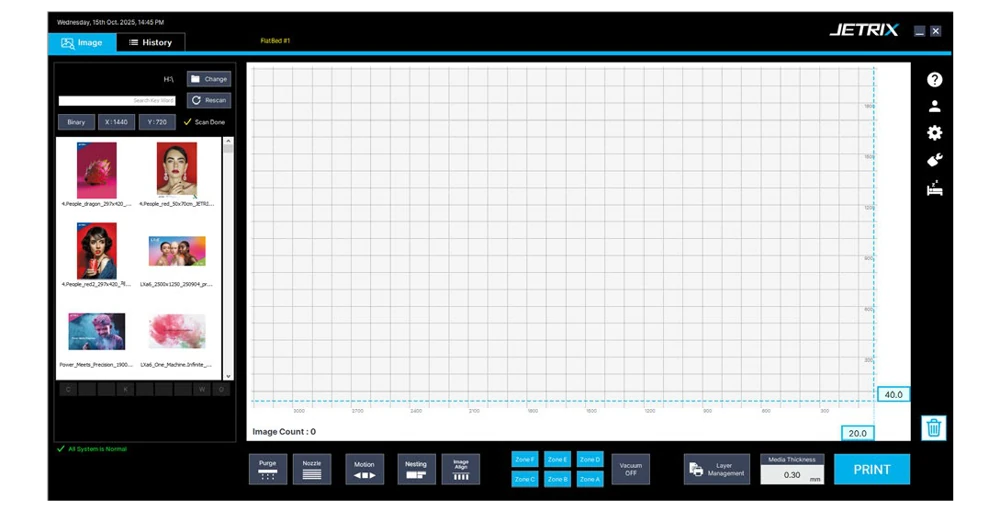
Set the layer order, assign image data and control the complete job in software developed by the printer manufacturer.
 Enlarge
JETRIX EX is proprietary software developed by the printer manufacturer. This allows machine control to evolve alongside the hardware and gives operators flexible tools for building print workflows.
Flexible workflows beyond preset functions: JETRIX EX lets operators define the layer sequence, assign data from one or more files and combine different printing methods in a single job.
LXa8 / LXa7-R / LXa6-R — LAYERS AND JETRIX EX
Primer, white ink, colour and varnish: assign data from one or more files and set the order of each print function.
More possibilities in one job. Fewer manual steps between layers.
JETRIX EX brings layer programming and machine control together. Configure up to six layers per stage and seven consecutive stages, add light-blocking masks or use Tandem mode.
SPOT PRIMER
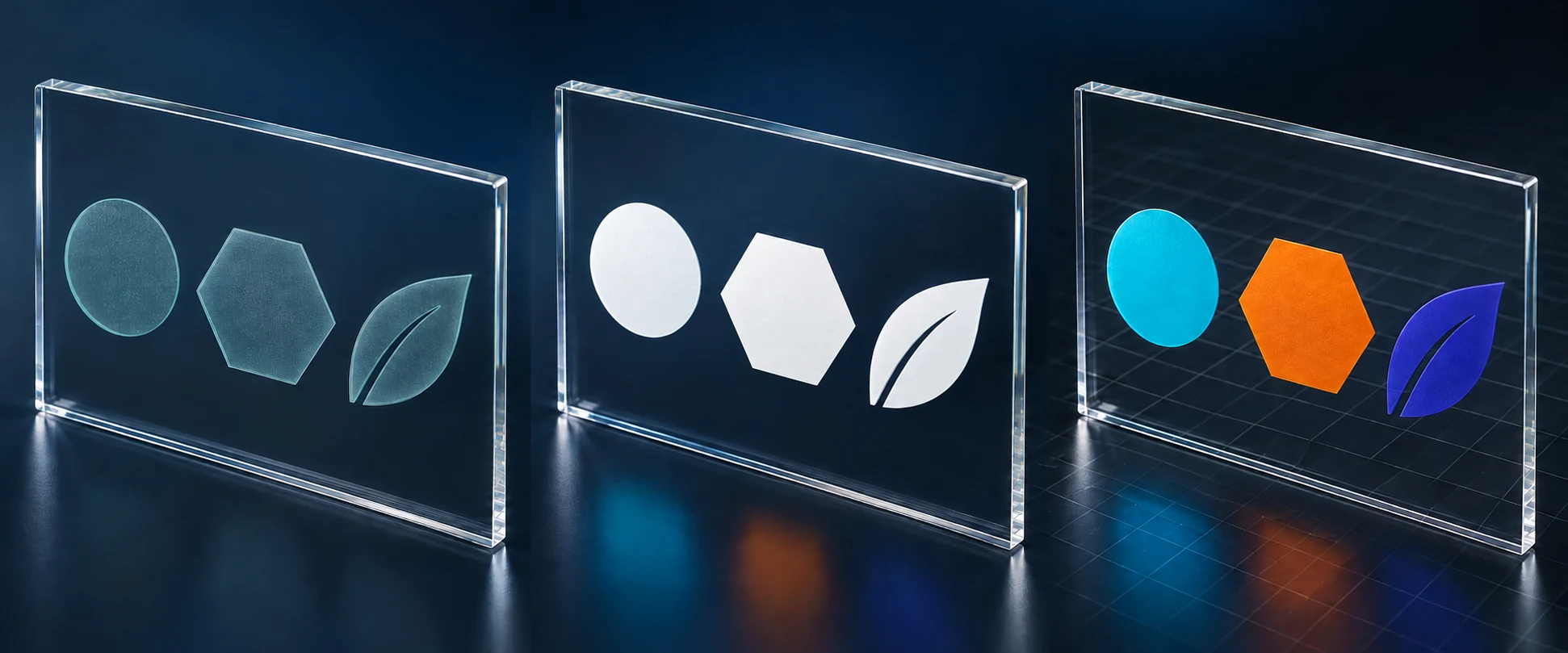
Primer prepares the surface to improve ink adhesion on demanding substrates such as glass or metal. Test the actual media to determine whether primer is needed.
Digitally applied primer can be limited to the areas defined by your artwork. For three separate shapes on a sheet of glass, apply primer beneath each shape and leave the spaces between them uncoated.
 Enlarge
VARNISH — SPOT FINISHING
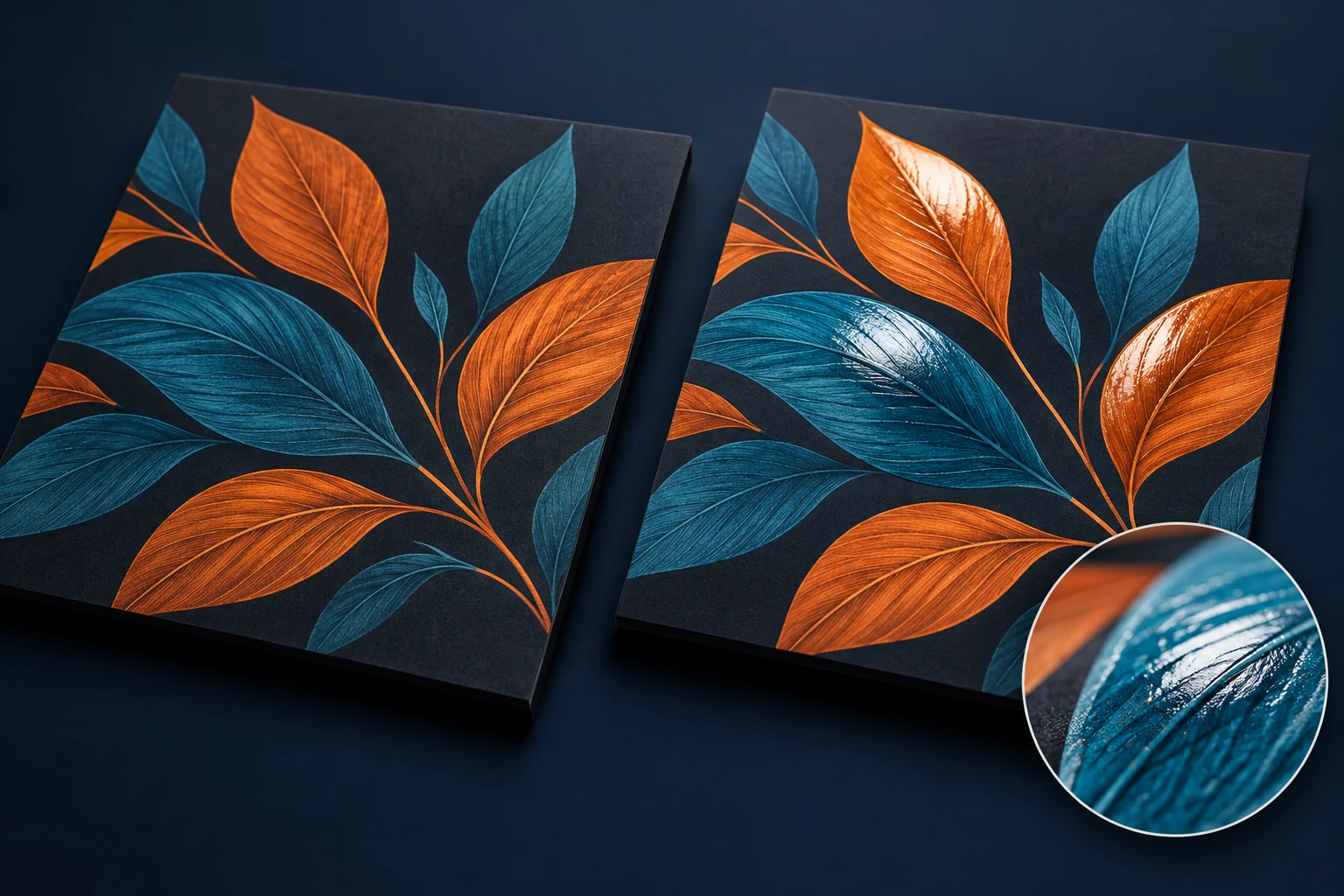
Varnish is a clear finishing layer. Apply it selectively to highlight a logo, lettering, a decorative detail or part of an illustration, or specify full-area coverage.
You choose which details stand out. Gloss on selected leaves contrasts with the surrounding surface as light reveals their shape. The effect depends on the substrate, print settings and UV curing conditions.
 Enlarge
MULTILAYER UV LED PRINTING
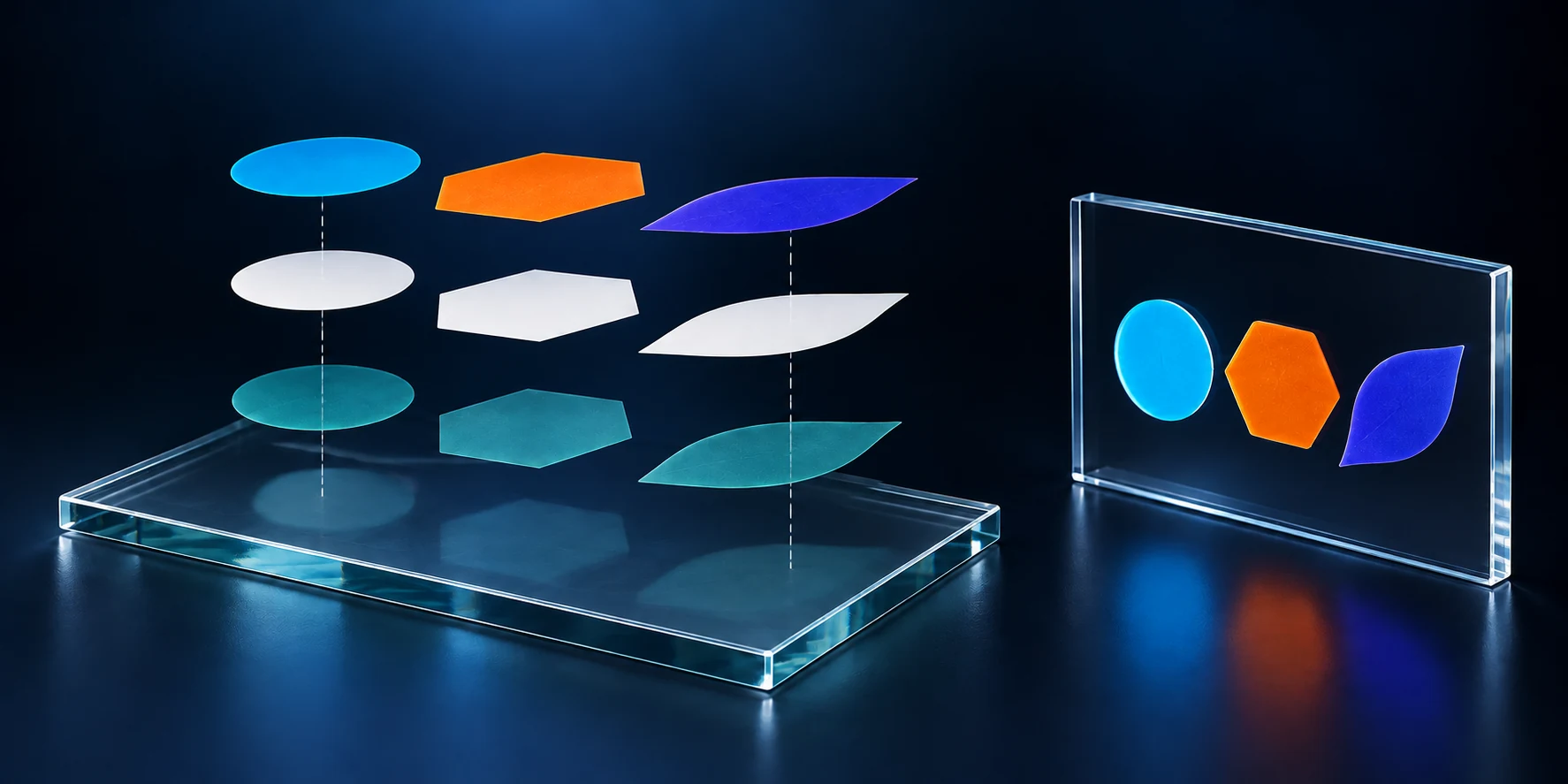
White ink can be a base beneath colour, a backing behind artwork viewed through glass, or a separating layer between two images.
 Enlarge
On a transparent substrate, white beneath colour provides opacity and reduces the influence of the background visible through the material.
Application order: primer → white → colour → optional varnish.
Example: a logo and separate shapes on a glass panel.
The print is on the back of the sheet. The viewer sees the colour through the glass, with white behind it providing opacity.
Print order on the rear surface: primer → colour → white.
Example: a decorative panel with artwork on the rear surface.
A white layer between two colour layers enables artwork designed to be viewed from both sides of a transparent substrate.
Example sequence: colour → white → colour.
Example: double-sided window graphics. Set white opacity and image registration to suit the job.
The diagrams show the application order. Primer is used when the substrate requires it.
Layer data can come from one file or several files. Prepare the colour artwork, white mask, primer areas and varnish mask, then assign their roles and order in JETRIX EX. You can also use separate artwork for the other side or a separate mask controlling light transmission.
Once the operator sets up and starts the job, the printer runs the complete sequence automatically. There is no need to change files or start the next stage manually after each layer. This applies to workflows using a single file and those combining data from several files.
6 × 7 / ONE PROGRAMMED JOB
Multi Layer mode combines up to six layers within one printing stage.
Program up to seven consecutive schedules, each with its own configuration.
Combining multilayer printing with consecutive stages creates a job of up to 42 layers.
6 layers × 7 stages = up to 42 layersIn one job, without manually starting each subsequent stage.
A stage is a schedule in JETRIX EX. Executing it may require multiple carriage passes, depending on the selected print mode.
Artwork with prepared layers, or separate artwork and mask files.
Assign data to layers, select modes and program the sequence.
The sequence runs to completion without manual file changes between layers.
INSIDE JETRIX EX
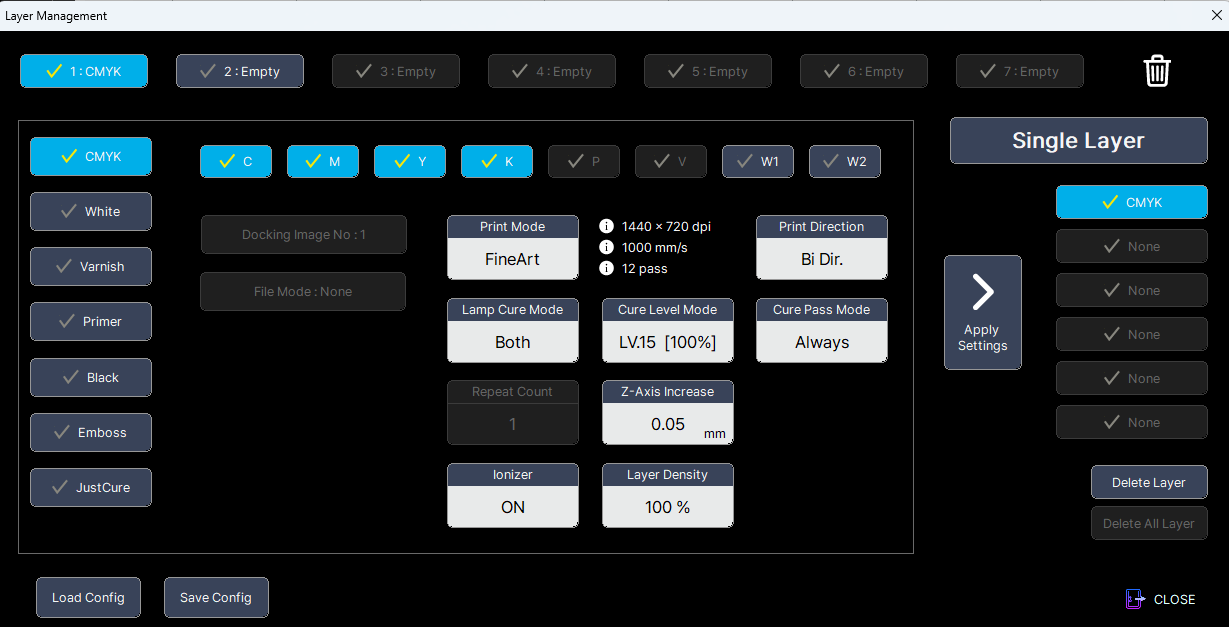
These JETRIX EX screens show how to build a workflow: select images, assign data to print functions and save the sequence.
 Enlarge
 Enlarge
Image Docking assigns up to three images to one position, for example for colour → white → colour. In Layer Management, select the image number used by each layer.
 Enlarge
 Enlarge
These sources are available for White, Varnish, Primer and Black. Combine merges channel data; selecting different images uses Image Docking.
 Enlarge
Save Config / Load Config save prepared schedule settings and load them again. After preparing the substrate and checking the job, start printing with PRINT.
 Enlarge
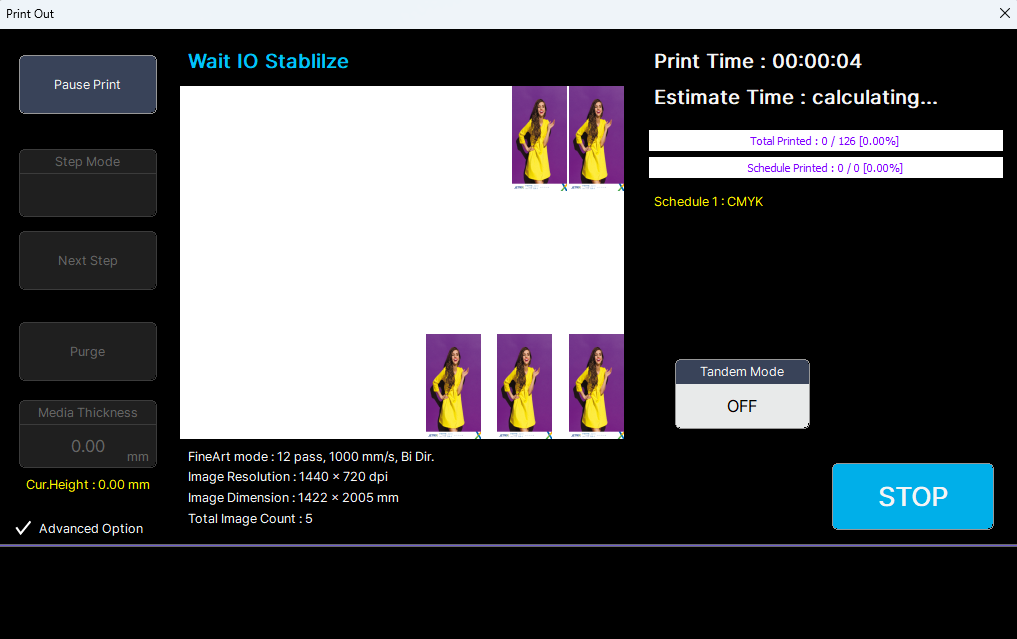
The software displays progress for the complete job and the schedule. The printer executes the programmed process without manual file switching between layers.
JETRIX EX supports up to nine virtual beds, seven schedules per bed and six layers per schedule. Schedules and layers are configured in sequence. Single Layer assigns one print function; Multi Layer allows several functions to be configured together.
Emboss and JustCure are not compatible with Multi Layer. In Multi Layer, Print Mode and Print Direction settings are available for the first layer. Check available functions and ink channels for your software version and printer configuration.
Operators prepare and check image dimensions and positions before starting the workflow.
Basic CMYK printing where the substrate provides sufficient brightness and testing confirms adhesion without primer.
White creates a light base so colour remains visible on a dark surface. Primer can precede this sequence if the substrate requires it.
Prepare only artwork areas, add an opaque base and print colour — for example, separate shapes on glass.
Colour sits closest to the glass, with white behind it providing opacity. Artwork is prepared for viewing through the sheet, usually mirrored.
Colour A is viewed through the transparent substrate; colour B from the printed side. These can be different images from separate files. White separates the images, while primer prepares the selected area.
A separate mask defines where gloss appears. Preparation layers and white can precede colour when required by the project.
These are examples, not an exhaustive list of modes. Order, required channels, opacity and curing settings are selected for the viewing direction and substrate. Primer is not required in every process.
BACKLIGHT AND LIGHT MASKING
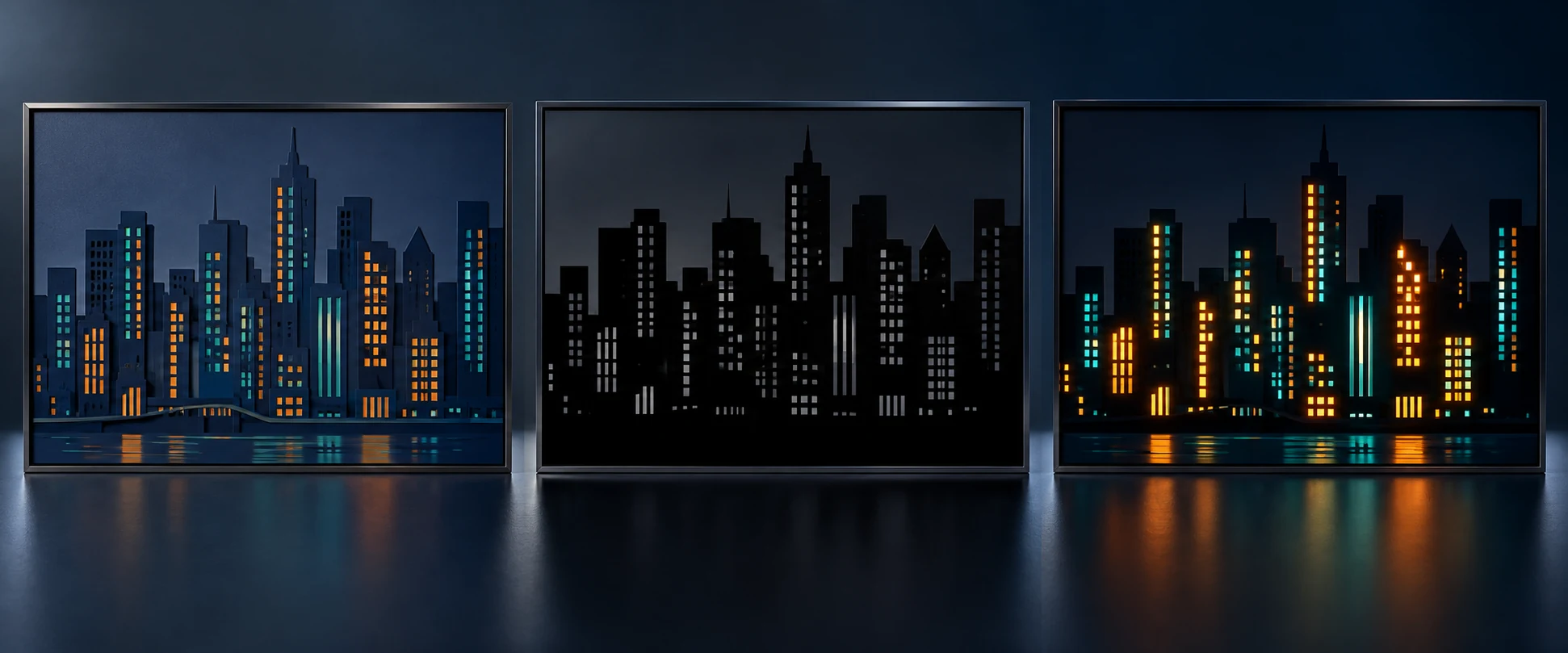
With backlit graphics, you can plan colours and also the areas that transmit light. A black masking layer can reduce backlighting in selected areas. Its role is to block light where the design should remain dark.
Example: a city skyline where selected windows light up when backlighting is switched on. The colour file creates the illustration; a separate mask defines light-blocking areas. Colour, white and masking layers are combined in the programmed process.
 Enlarge
TANDEM / PRINT AND PREPARE
Print in one area.
Prepare the next batch in the other.
Two bed areas. Print in one while preparing media in the other.
Tandem Mode divides the bed into front and rear printing areas. When printing finishes in the front area, the printer moves to the rear. The operator can then unload the finished front prints and prepare new media.
Prepare media while the other area prints. This reduces downtime for media changes during larger production runs. Job dimensions must fit the areas allocated to Tandem operation.
CONFIRMATION AT THE BED
A confirmation button at each end of the bed lets the operator signal that the corresponding area is ready after loading the media.
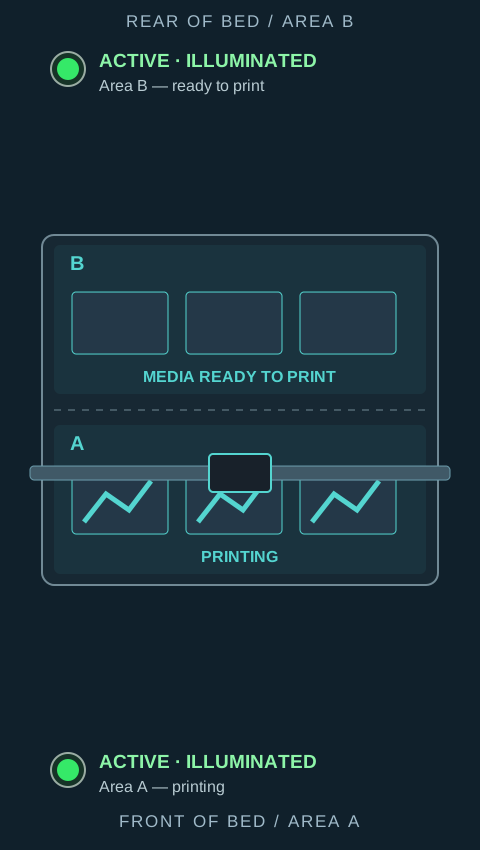
The button lights show whether each area is ready. An active button glows green to show that the media is ready. It stays active and lit during printing. An unlit button means the area is inactive for media changes.
 Enlarge
 Enlarge
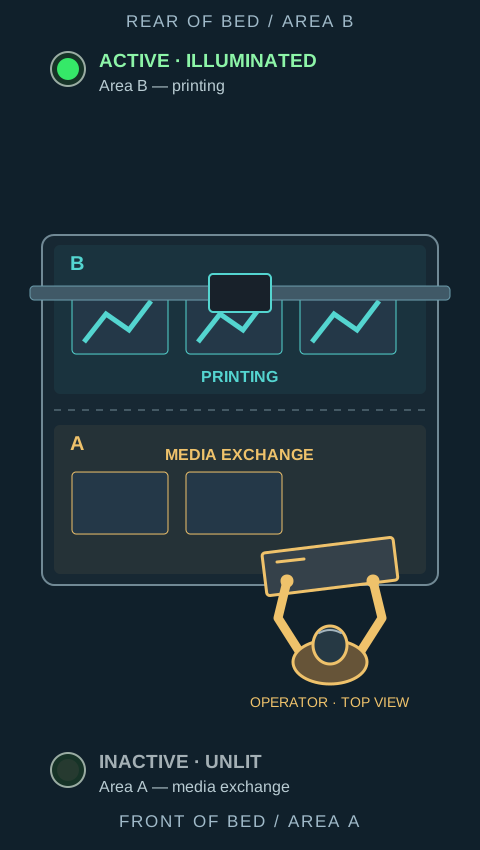
The job prints in the front area. Prepared media waits in the rear area. Both buttons are active: printing at the front, media ready to print at the rear.
 Enlarge
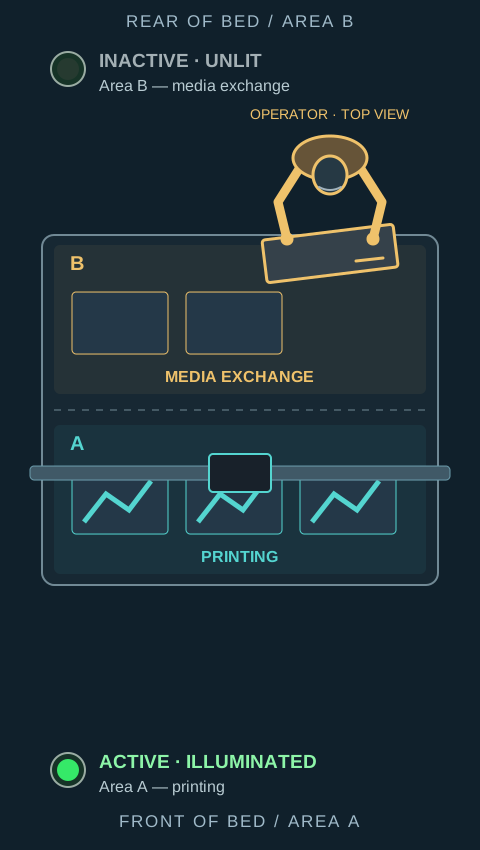
After the front print finishes, the machine prints at the rear. The operator removes the front prints and loads new media. The front button is inactive and unlit; the rear button remains active during printing.
 Enlarge
After loading the media, the operator confirms readiness with the bed button. When printing in the current area finishes, the printer can move to the next area for the next batch. The front button stays active during printing, while the operator reloads the rear area with its button inactive.
Top-view diagrams: A is the front area and B is the rear area. Green buttons indicate readiness or printing; unlit buttons indicate a media change.
CONTROLS ALSO AVAILABLE IN THE GUI
Wait Signal — when enabled, the program waits for confirmation before moving to the next area.
Next GO — the operator confirms the media is ready; the software can move to the next area and begin printing there.
Tandem Mode is available for compatible jobs. Set the image layout for Tandem when loading the job onto the bed.
 Enlarge
Check Tandem availability and settings for your printer configuration, software version and job. Handle media only in the designated preparation area, following the printer’s operating procedures.
03 / CONSTRUCTION AND OPERATION
Media positioning, carriage movement and UV curing work together throughout the print process. The LXa8 is designed to support each stage.
 Enlarge
 Vacuum hold-down starts automatically with printing. Six zones, controlled from the front and rear of the bed, help secure rigid and flexible media.
Automatic positioning pins at the bed edges help you align media consistently before printing.
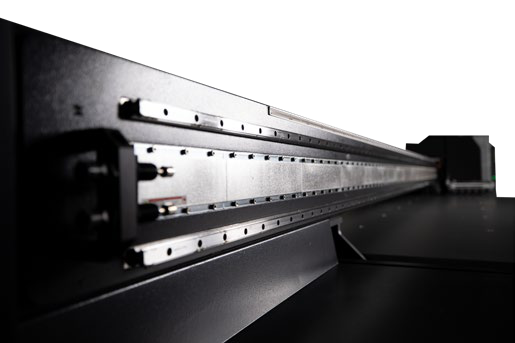
Precise motion control keeps the carriage running smoothly and supports repeatable positioning across the print area.

Konica Minolta printheads, 6 pl ink drops and masking mode help reproduce fine detail. UV LED lamps cure the ink during printing.

The anti-crash system helps protect the printheads from contact with the substrate. Correct media placement remains essential.
EVERYDAY WORK
After printhead cleaning, the wiper removes residual ink from the head surfaces, making routine maintenance easier.
The ink tanks slide out for easy refilling from the front of the printer.
Light curtains detect entry into the working area. Blue LEDs indicate printing; red LEDs indicate an emergency stop or activation of a light curtain.
Reduces static electricity on the media surface. Alphaset can advise on its use for your media and printer configuration.
04 / COLOUR AND FINISH
InkTec develops JETRIX printers and their inks together. For ULS inks for the LXa series and supply in Slovakia, contact Alphaset.
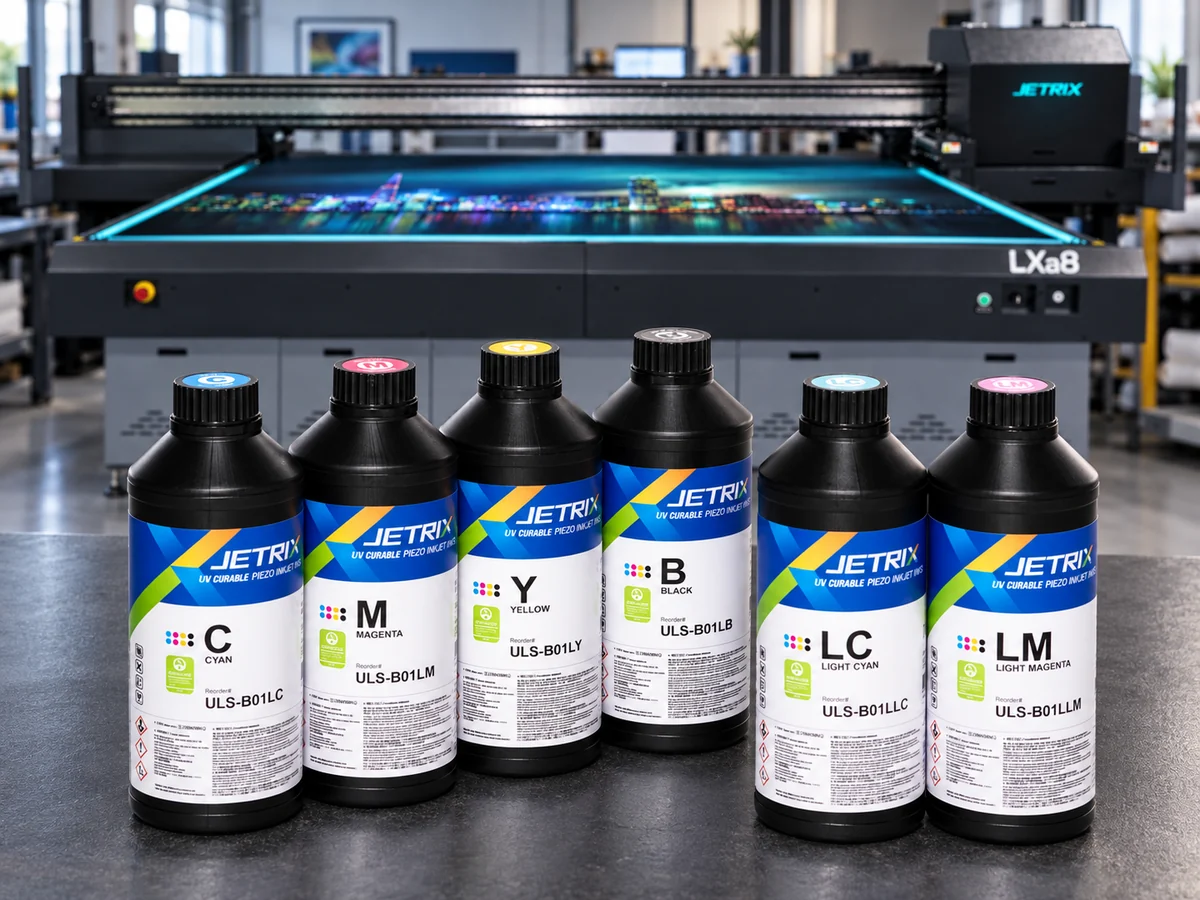
INKTEC ULS / JETRIX LXa
Available colours and functional inks depend on the printer configuration.The LXa8 can be configured with up to 16 printheads in one or two rows. Head count, light colours, white ink, primer and varnish are selected when ordering. Available ink channels depend on the chosen configuration.
UV LED irradiance is up to 3 890 mW/cm². GREENGUARD Gold certification applies to InkTec UV inks.
05 / PRODUCTION SPEED
Five print modes with different pass counts. Alphaset can test your artwork and material before you choose the configuration.
69.8 m²/h
6 passes / 6 colours
A starting point for everyday production. Choose the mode according to your artwork, substrate and quality requirements.
Select a mode on the chartThe stated speeds were measured with 6 colours in masking mode at a print width of 3.2 m. Actual speed depends on the artwork, firmware, computer performance, printer configuration and settings. These figures do not represent total job throughput or printing speeds with white ink or varnish.
FROM FILE TO PRINT
The RIP prepares print data and manages colour settings. JETRIX EX controls the printer and print process. Alphaset checks RIP compatibility and licences for your configuration.
* Supported RIP software. Alphaset confirms the version, driver, licence and available functions for your printer configuration.
Set the print size and colour, then prepare any layers needed for white or functional inks.
Load the media onto the bed and apply the settings established during print testing.
Assess colour, detail and adhesion in the conditions in which the finished print will be used.
06 / TECHNICAL DATA
Specifications for the LXa8 configuration shown. Confirm the details of your chosen configuration when ordering.
Acrylic, glass, metal, plastics, wood, paper, leather, stone and slate, ceramics and fabrics. Alphaset tests the suitability of your media and the surface preparation required.
JETRIX / LOCAL DISTRIBUTION
For purchasing, availability and support in Slovakia, contact the local JETRIX partners.
07 / HELP WITH PRINTING
Our support continues after delivery. We help you integrate the LXa8 into your production and keep it working well.
We discuss your jobs, media and expectations before recommending a printer that suits your production. If our range does not meet your needs, we can suggest alternatives.
Every installation is different. Alphaset checks printer operation and print quality before completing the installation.
Introductory training helps operators get started. A follow-up consultation can address questions arising from daily use. Agree the training scope and follow-up arrangements with Alphaset.
The first installation of JETRIX LXa8 in Europe - in Poland.
Discuss the model and your production requirements with Alphaset. Contact Alphaset
08 / PRACTICAL QUESTIONS
Answers to common questions about choosing a flatbed printer.
180 m²/h is the maximum speed in Top Speed mode at 2 passes and 6 colours. Production mode is rated at 69.8 m²/h with 6 passes. Actual speed depends on the artwork, configuration, mode, settings and additional layers. Media loading and job preparation also affect overall production throughput.
The LXa8 prints onto a wide range of substrates, including acrylic, glass, metal, wood and plastics. Alphaset tests your media to check adhesion for the surface, preparation and intended use, and recommends a primer where needed.
No. These are configuration options for the LXa8. Alphaset helps you select ink channels, printhead count and arrangement for your work, and confirms the available light colours, ioniser and RIP software.
6 pl is the ink drop volume, measured in picolitres. The maximum addressable resolution is 1,440 dpi. Print quality also depends on the print mode, pass count, media and colour profile.
The LXa8 shown is a flatbed printer without a roll-to-roll option. If you also need roll printing, compare LXa7-R and LXa6-R or discuss the production process with Alphaset.
Prepare sample artwork, your media, typical print sizes and production volumes. Before delivery, Alphaset also needs details of the site, access route, available space and power supply to plan the configuration and installation.
09 / DOCUMENTATION
Alphaset’s Slovak brochure and the manufacturer's original English catalogue. Both PDFs open in a new tab.
TELL US ABOUT YOUR PRODUCTION
Tell Alphaset about your media, print sizes and production requirements to discuss the right configuration and arrange print tests.